
With Peertube you can create your own video portal. Today I show how I installed Peertube on my Synology Diskstation.
Step 1: Prepare Synology
The first thing to do is to enable SSH login on Diskstation. To do this, go to the “Control Panel” > “Terminal
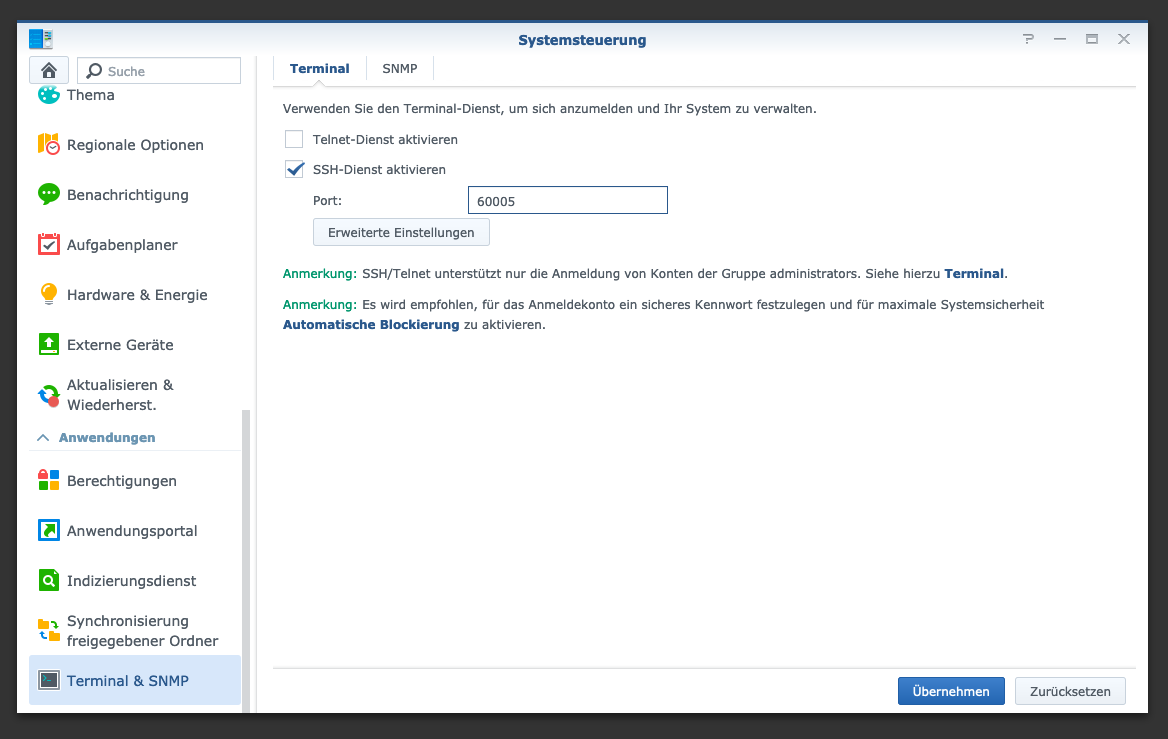
After that you can log in via “SSH”, the specified port and the administrator password.
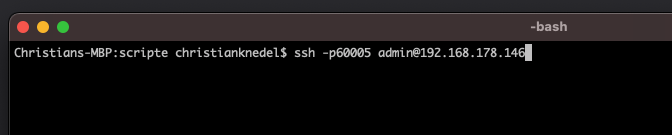
I log in via Terminal, winSCP or Putty and leave this console open for later.
Step 2: Prepare Docker folder
I create a new directory called “Peertube” in the Docker directory.
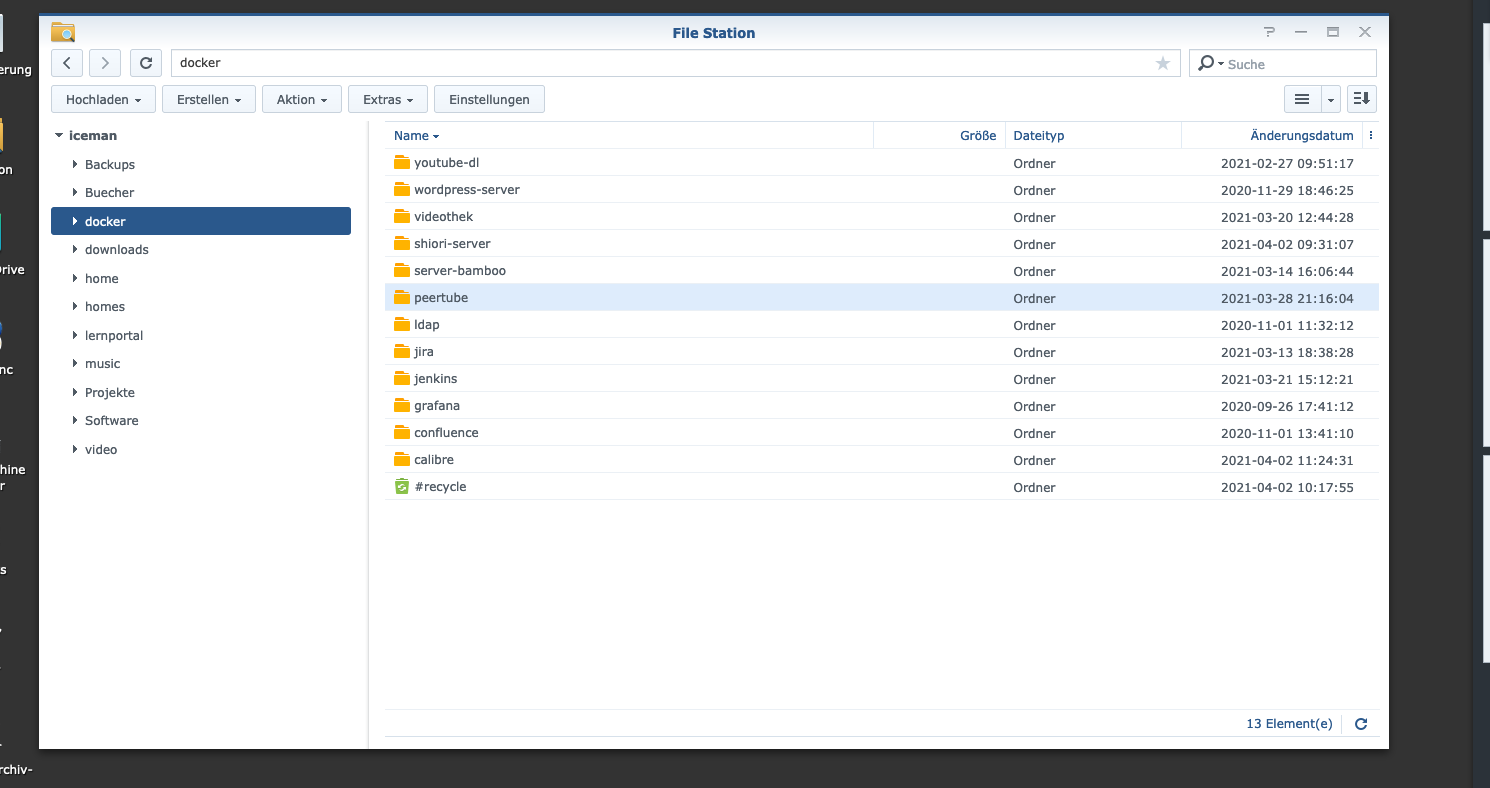
After that I go to the Peertube directory and create a new file called “peertube.yml” with the following content. For the port, the front part “9000:” can be customized. The second volume contains all videos, playlist, thumbnails etc… and therefore must be adjusted.
version: "3.7"

services:
  peertube:
    image: chocobozzz/peertube:contain-buster
    container_name: peertube_peertube
    ports:
       - "9000:9000"
    volumes:
      - ./config:/config
      - ./videos:/data
    environment:
      - TZ="Europe/Berlin"
      - PT_INITIAL_ROOT_PASSWORD=password
      - PEERTUBE_WEBSERVER_HOSTNAME=ip
      - PEERTUBE_WEBSERVER_PORT=port
      - PEERTUBE_WEBSERVER_HTTPS=false
      - PEERTUBE_DB_USERNAME=peertube
      - PEERTUBE_DB_PASSWORD=peertube
      - PEERTUBE_DB_HOSTNAME=postgres
      - POSTGRES_DB=peertube
      - POSTGRES_USER=postgres
      - POSTGRES_PASSWORD=postgres
      - PEERTUBE_REDIS_HOSTNAME=redis
      - PEERTUBE_ADMIN_EMAIL=himself@christian-knedel.de
    depends_on:
      - postgres
      - redis
    restart: "always"
    networks:
      - peertube

  postgres:
    restart: always
    image: postgres:12
    container_name: peertube_postgres
    volumes:
      - ./postgresql:/var/lib/postgresql/data
    environment:
      - POSTGRES_USER=peertube
      - POSTGRES_PASSWORD=peertube
      - POSTGRES_DB=peertube
    networks:
      - peertube

  redis:
    image: redis:4-alpine
    container_name: peertube_redis
    volumes:
      - ./redis:/data
    restart: "always"
    networks:
      - peertube
    expose:
      - "6379"

networks:
  peertube:
This file is started via Docker Compose:
$ sudo docker-compose -f compose-file-name.yml up -d
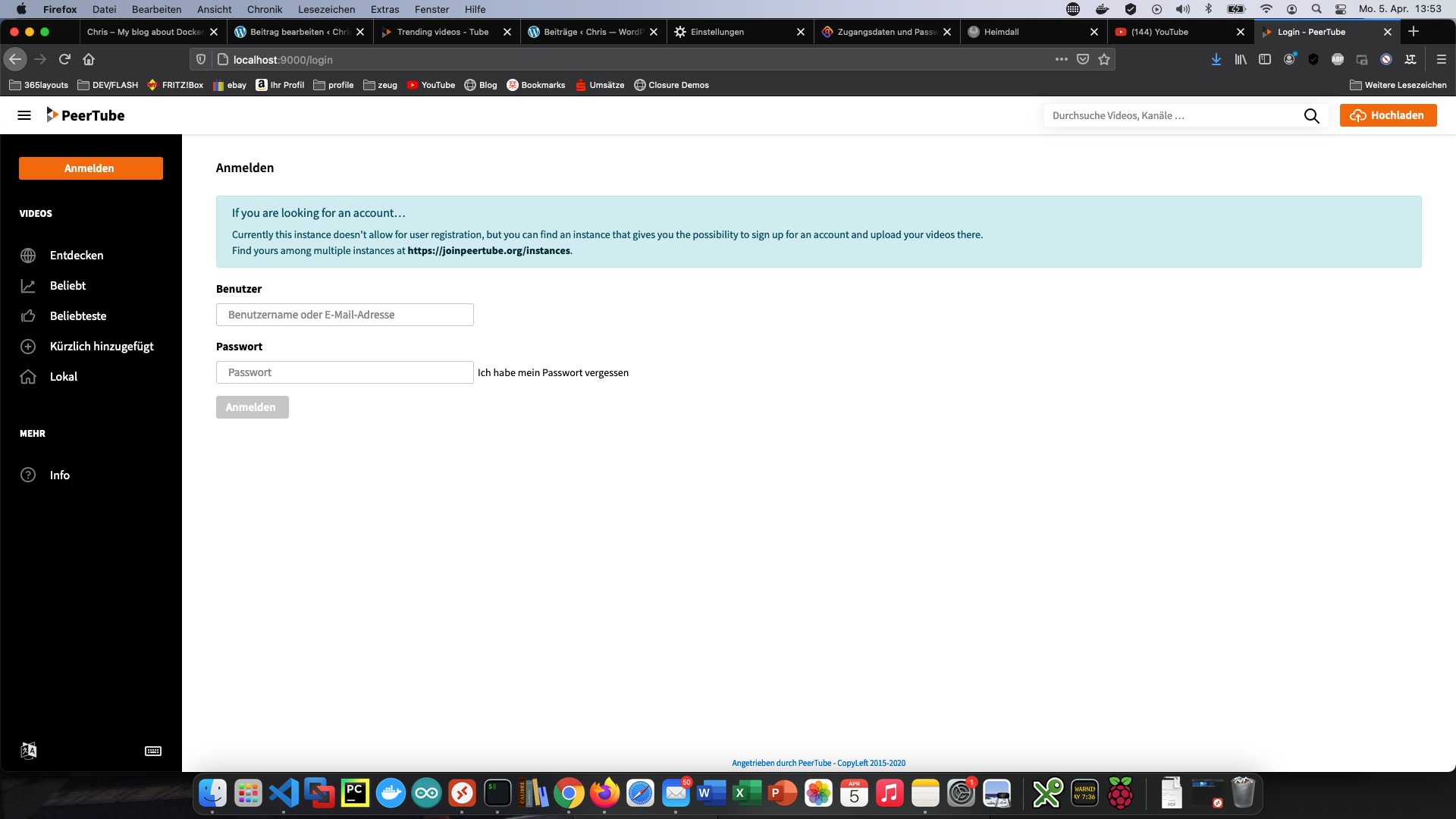
The username is “root” and the password is “password” (or step 2 / PT_INITIAL_ROOT_PASSWORD).
Theme customization
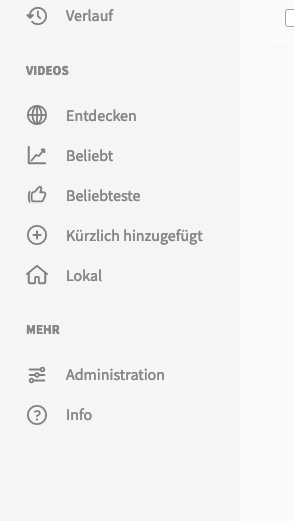
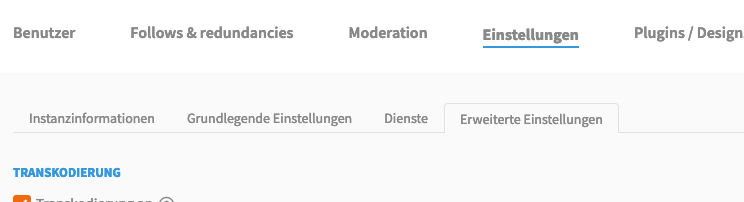
The appearance of Peertube is very easy to customize. To do this, I click on “Administration” > “Settings” and “Advanced settings”.
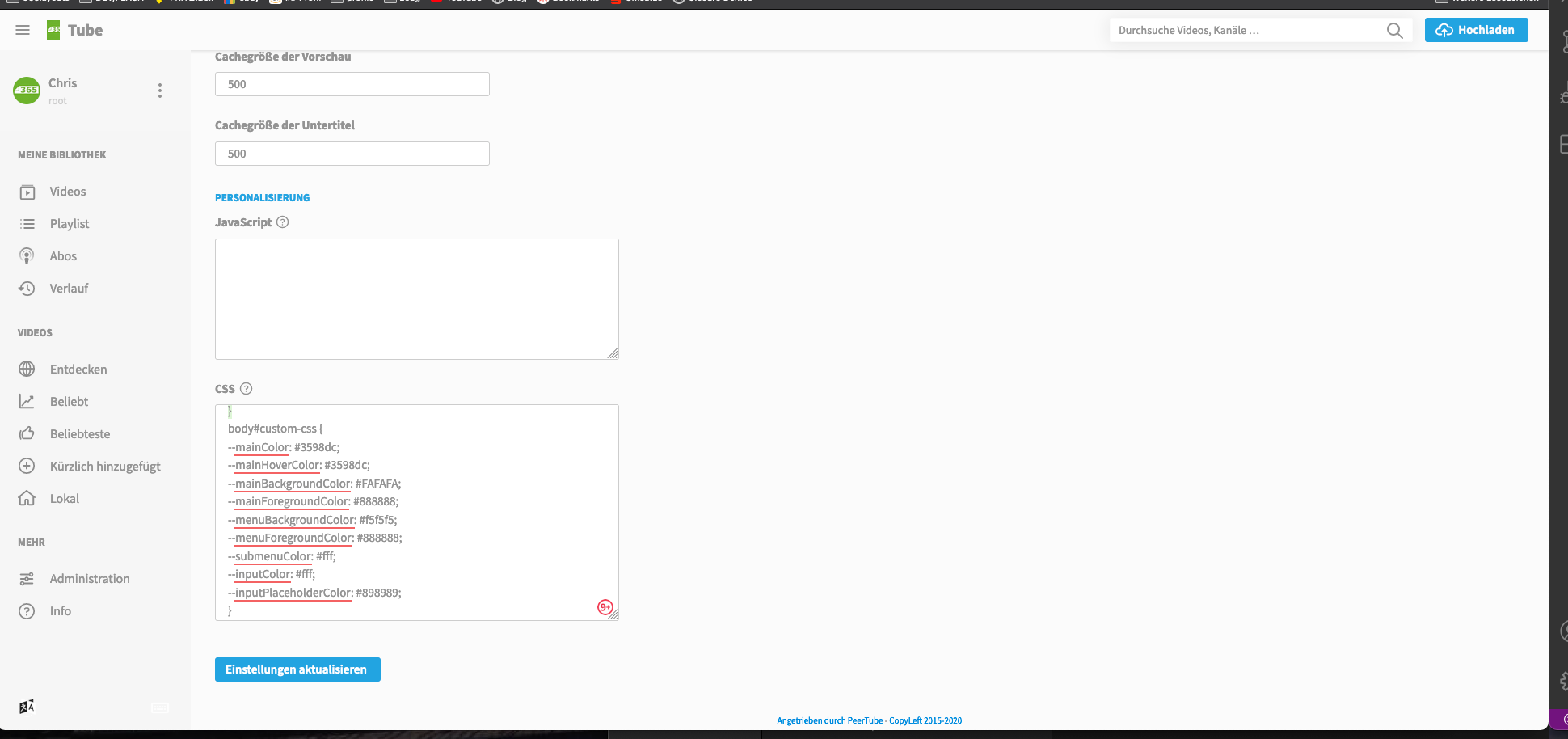
There I entered the following in the CSS field:
body#custom-css {
--mainColor: #3598dc;
--mainHoverColor: #3598dc;
--mainBackgroundColor: #FAFAFA;
--mainForegroundColor: #888888;
--menuBackgroundColor: #f5f5f5;
--menuForegroundColor: #888888;
--submenuColor: #fff;
--inputColor: #fff;
--inputPlaceholderColor: #898989;
}
Rest API
PeerTube has an extensive and well documented Rest API: https://docs.joinpeertube.org/api-rest-reference.html.
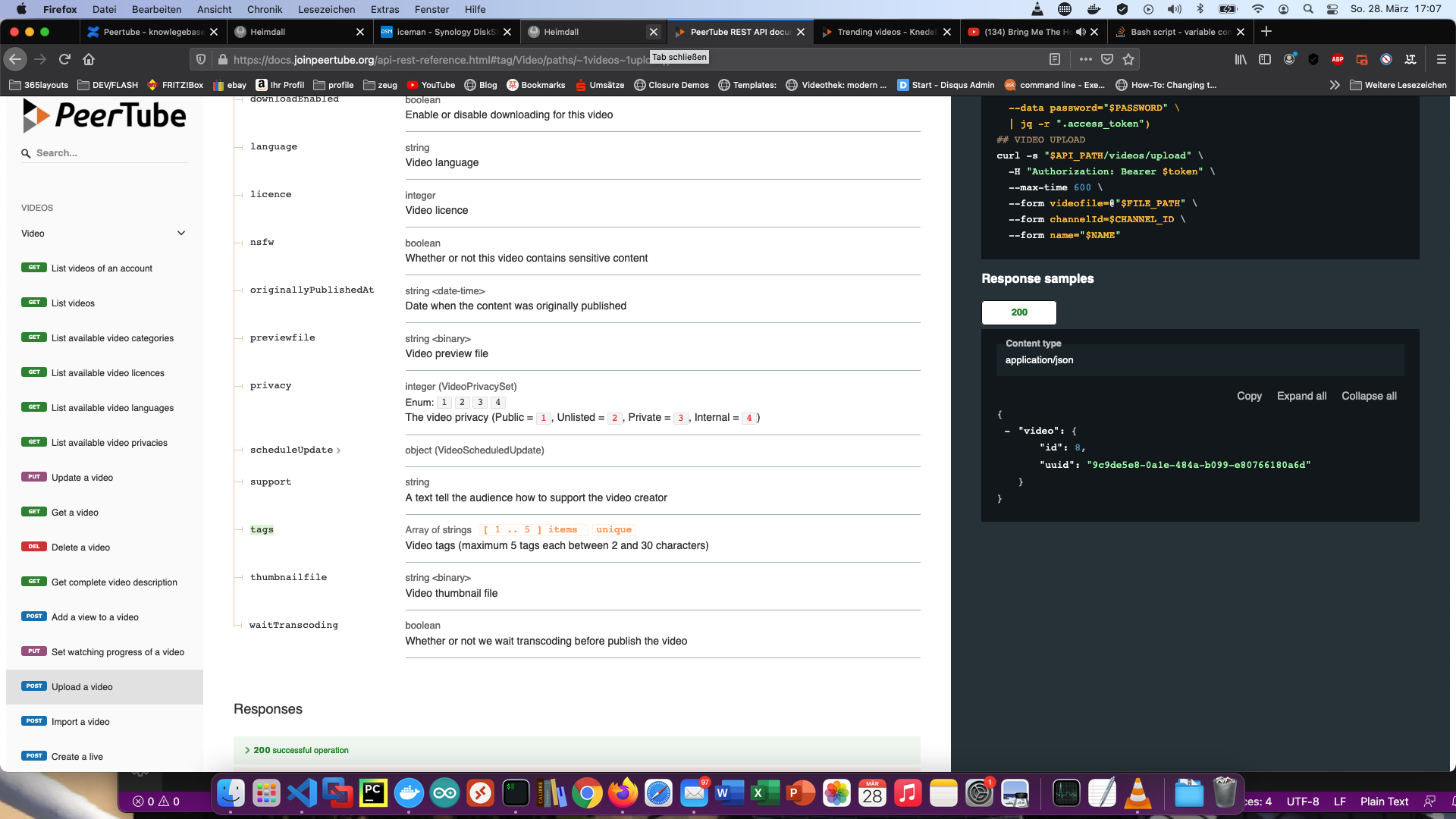
Searching for videos is possible with this command:
$ curl -s "http://pree-tube/api/v1search/videos?search=docker&languageOneOf=de"
#!/bin/bash
USERNAME="user"
PASSWORD="password"
API_PATH="http://peertube-adresse/api/v1"

client_id=$(curl -s "$API_PATH/oauth-clients/local" | jq -r ".client_id")
client_secret=$(curl -s "$API_PATH/oauth-clients/local" | jq -r ".client_secret")
token=$(curl -s "$API_PATH/users/token" \
  --data client_id="$client_id" \
  --data client_secret="$client_secret" \
  --data grant_type=password \
  --data response_type=code \
  --data username="$USERNAME" \
  --data password="$PASSWORD" \
  | jq -r ".access_token")

curl -s '$API_PATH/videos/upload'-H 'Authorization: Bearer $token' --max-time 11600 --form videofile=@'/scripte/output.mp4' --form name='mein upload'
My tip: Read “Great things with containers: making Docker services more secure with LDAP and NGINX”.
I run my Peertube with a reverse proxy. This means that only LDAP users can access this service. I have documented this setup under “Great things with containers: making Docker services more secure with LDAP and NGINX”.