


38
results
for Synology
-
Difficulty level: Can be done by anyone
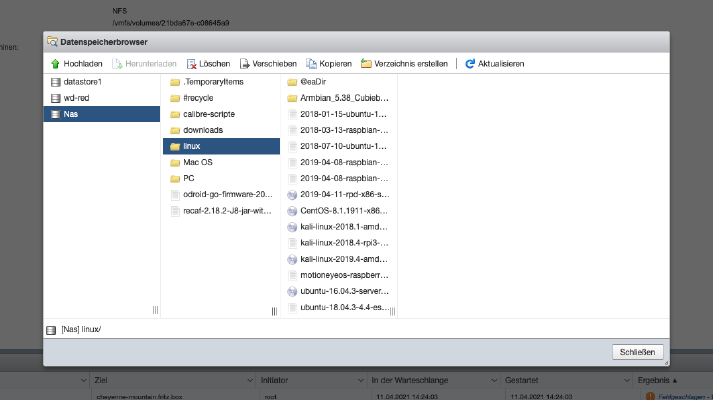 Step 1: Enable “NFS” service The first thing to do is to enable the “NFS” service on the Diskstation. To do this, I go to the “Control Panel” > “File Services” setting and click on “Enable NFS”. Then I click on “Shared folder” and select a directory. Step 2: Mount directories in ESXi In ESXi I click on “Storage” > “New Datastore” and enter my data there.
 -
Difficulty level: Can be done by anyone
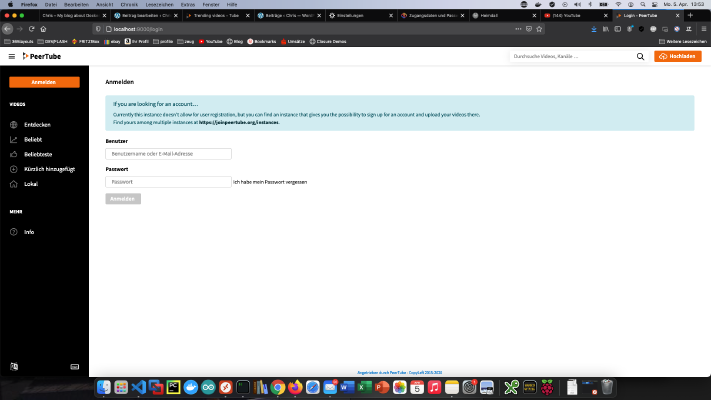 With Peertube you can create your own video portal. Today I show how I installed Peertube on my Synology Diskstation. Step 1: Prepare Synology The first thing to do is to enable SSH login on Diskstation. To do this, go to the “Control Panel” > “Terminal After that you can log in via “SSH”, the specified port and the administrator password. I log in via Terminal, winSCP or Putty and leave this console open for later.
 -
Difficulty level: It may take a little longerAfter my first tutorial about “Gitlab on Synology Diskstation”, I was asked several times if I still use this solution. Nope! In the meantime I have moved my Atlassian tools and the following GitLab installation to an intel NUC. Enclosed I show once my current Compose -file, which can of course also be run on a Synology diskstation.You can clearly see that I now use special setting for OpenLDAP, container registry, mail, certificates and logging.
-
Difficulty level: Not too easy and not too hard
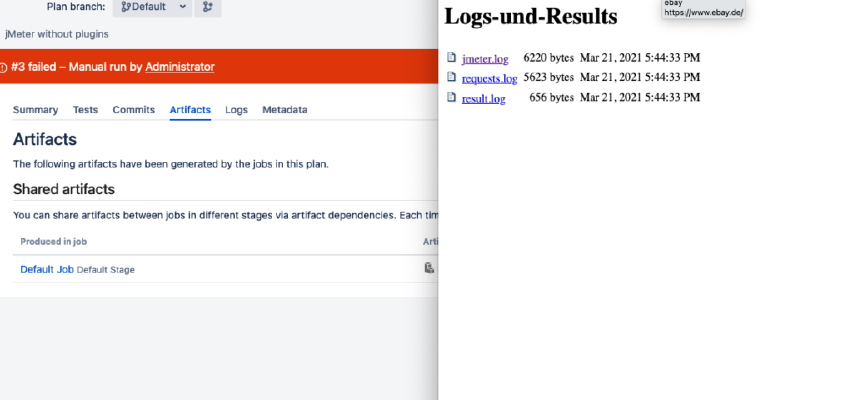 Today I am creating a jMeter test in Bamboo. Of course, you can also implement this test setup with Gitlab runners or Jenkins slaves. Step 1: Create jMeter test The first thing to do, of course, is to create a jMeter test. I downloaded jMeter from the following url https://jmeter.apache.org/ and started it with this command: x – + Terminal $ java -jar bin/ApacheJMeter.jar See:My demo test for this tutorial is intended to contain buggy and working samplers.
 -
Difficulty level: It may take a little longer
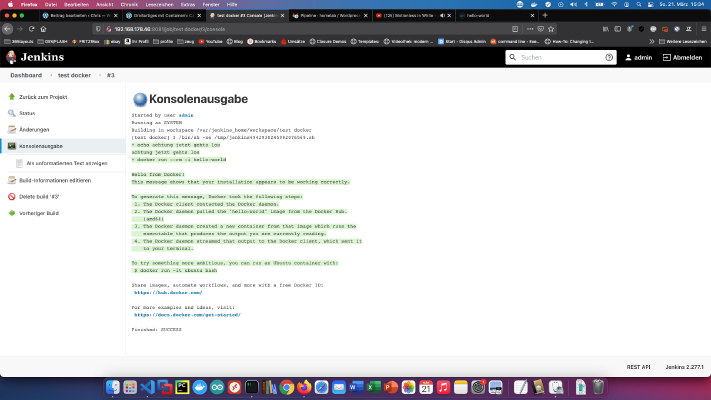 Step 1: Prepare Synology The first thing to do is to enable SSH login on Diskstation. To do this, go to the “Control Panel” > “Terminal After that you can log in via “SSH”, the specified port and the administrator password (Windows users take Putty or WinSCP). I log in via Terminal, winSCP or Putty and leave this console open for later. Step 2: Prepare Docker folder I create a new directory called “jenkins” in the Docker directory.
 -
Difficulty level: Can be done by anyone
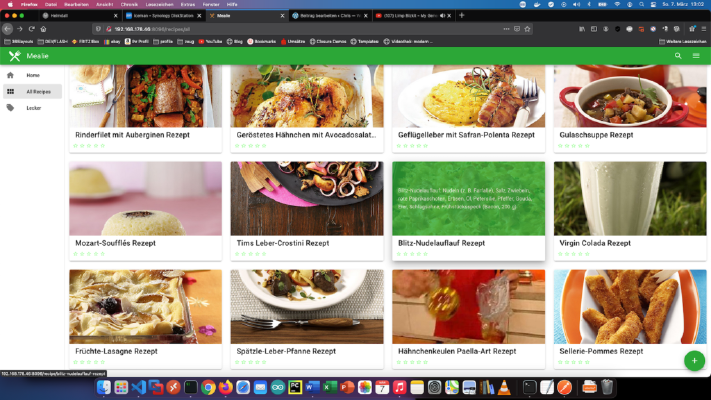 Collect all your favorite recipes in Docker container and organize them according to your needs. Write your own recipes or import recipes from websites, for example “Chef”, “Food Option for professionals Of course, as an experienced Synology user, you can log in right away with SSH and install the whole setup via Docker Compose file. version: "2.0" services: mealie: container_name: mealie image: hkotel/mealie:latest restart: always ports: - 9000:80 environment: db_type: sqlite TZ: Europa/Berlin volumes: - .diskstation Docker docker-compose docker-for-desktop rezepte Created
Sun, 07 Mar 2021 00:00:00 +0000 -
Difficulty level: It may take a little longer
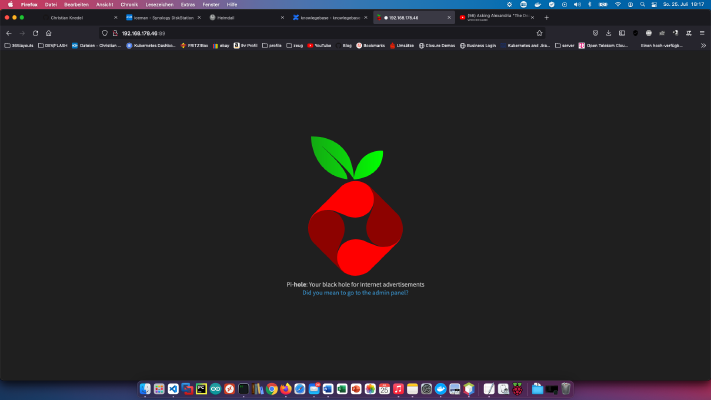 Today I show how to install a Pihole service on the Synology disk station and connect it to the Fritzbox. Step 1: Prepare Synology The first thing to do is to enable SSH login on Diskstation. To do this, go to the “Control Panel” > “Terminal After that you can log in via “SSH”, the specified port and the administrator password (Windows users take Putty or WinSCP). I log in via Terminal, winSCP or Putty and leave this console open for later.
 -
Difficulty level: It may take a little longer
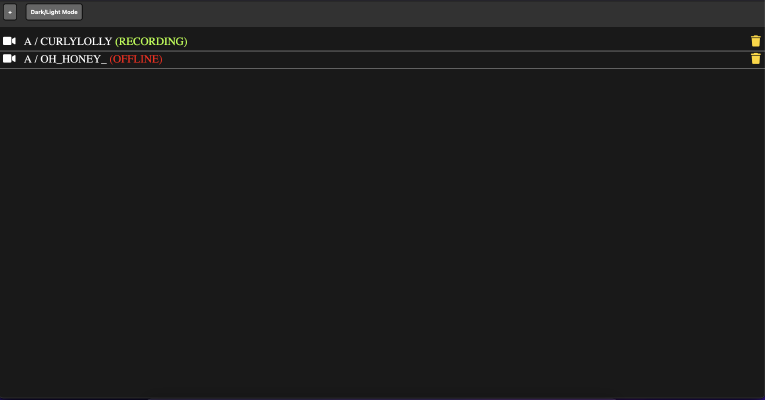 In the following tutorial, you will install the “chaturbate-downloader” as a Docker container on your Synology disk. This program can record live sessions and also search independently with filters. Step 1: Prepare Synology The first thing to do is to enable SSH login on Diskstation. To do this, go to the “Control Panel” > “Terminal After that you can log in via “SSH”, the specified port and the administrator password (Windows users take Putty or WinSCP).chaturbate Docker Internet-Archiv Synology chaturbate-downloader Created
Tue, 07 Apr 2020 00:00:00 +0000 -
Difficulty level: It may take a little longer
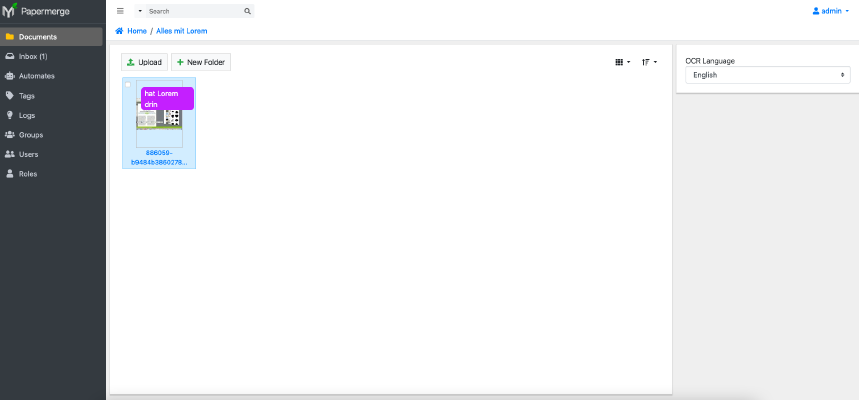 Papermerge is a young document management system (DMS) that can automatically assign and process documents. In this tutorial I show how I installed Papermerge on my Synology disk station and how the DMS works. Option for professionals Of course, as an experienced Synology user, you can log in right away with SSH and install the whole setup via Docker Compose file. version: "2.1" services: papermerge: image: ghcr.io/linuxserver/papermerge container_name: papermerge environment: - PUID=1024 - PGID=100 - TZ=Europe/Berlin volumes: - .
 -
Difficulty level: Can be done by anyone
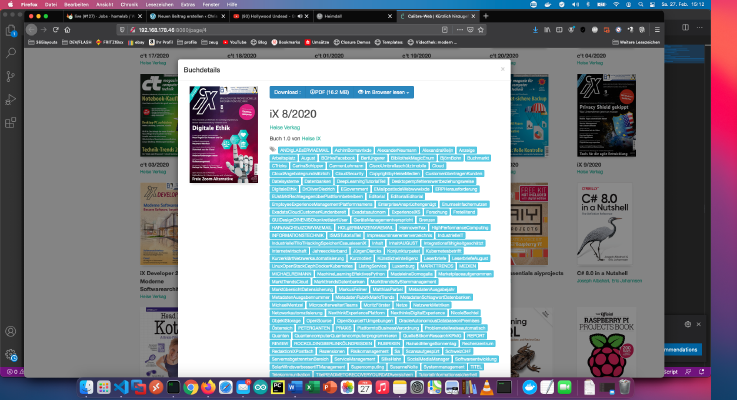 It can often be tedious to tag PDFs with the right meta info. I myself sort the downloaded PDFs from my Heise-IX subscription account, into my private Calibre library. Because this process repeats itself every month, I came up with the following setup. I just drag and drop my new PDFs into my library. I have created a container for myself that gets my Calibre library as a volume (-v …:/books).